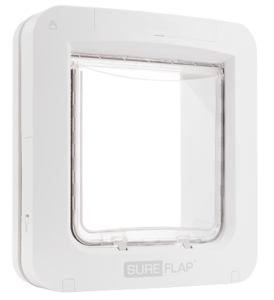
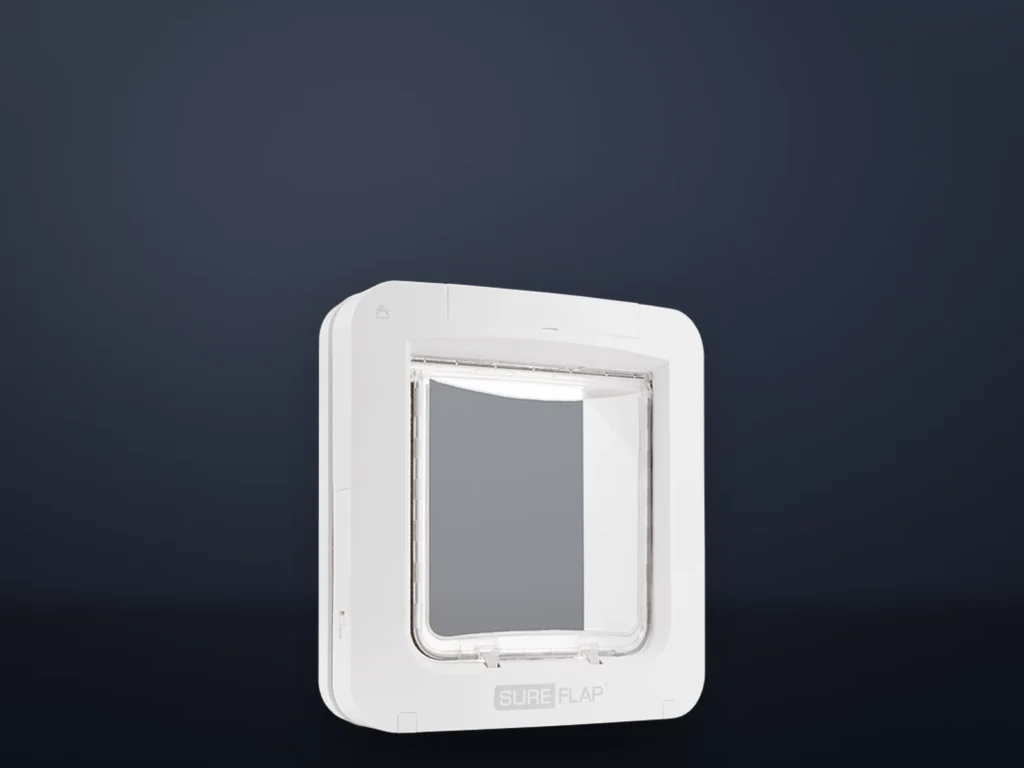
Program every pet into a SureFlap Microchip Pet Door Connect while the door is still on the floor, before you cut a hole. In “Add a pet” mode the door saves the chip of whichever animal puts its head into the tunnel first. Once the door is fitted, that could be a neighbor’s cat. These steps are for the Microchip Pet Door Connect, the version that pairs with the Sure Petcare Hub and app. The plain Microchip Pet Door programs a little differently. Programming takes a few minutes per pet, but a wary cat can need days of practice before it pushes the flap on its own.
Before you start
- Four good alkaline C batteries, such as Energizer or Duracell.
- The Sure Petcare app with your household set up, and the Hub plugged into your router with both of its ears solid green.
- A handful of your pet’s dry food or treats.
- Your pet’s microchip number from your vet records or the registry, so you can match it to the ID the app shows.
- For a pet with no chip, the RFID collar tag from the box. On a cat, it goes on a safety collar with a breakaway buckle.
Program each pet before you fit the door
Put the batteries in first, two in each side of the door. Push the first cell up into its compartment with the negative end facing up, hold it there and slide the second one in below it.
The door saves a chip only when the sensors inside the tunnel detect your pet, so the whole job is getting your pet to look into the tunnel. Add one pet at a time and write down the order. The door numbers pets as it goes, and adding them separately keeps their IDs from getting mixed up.
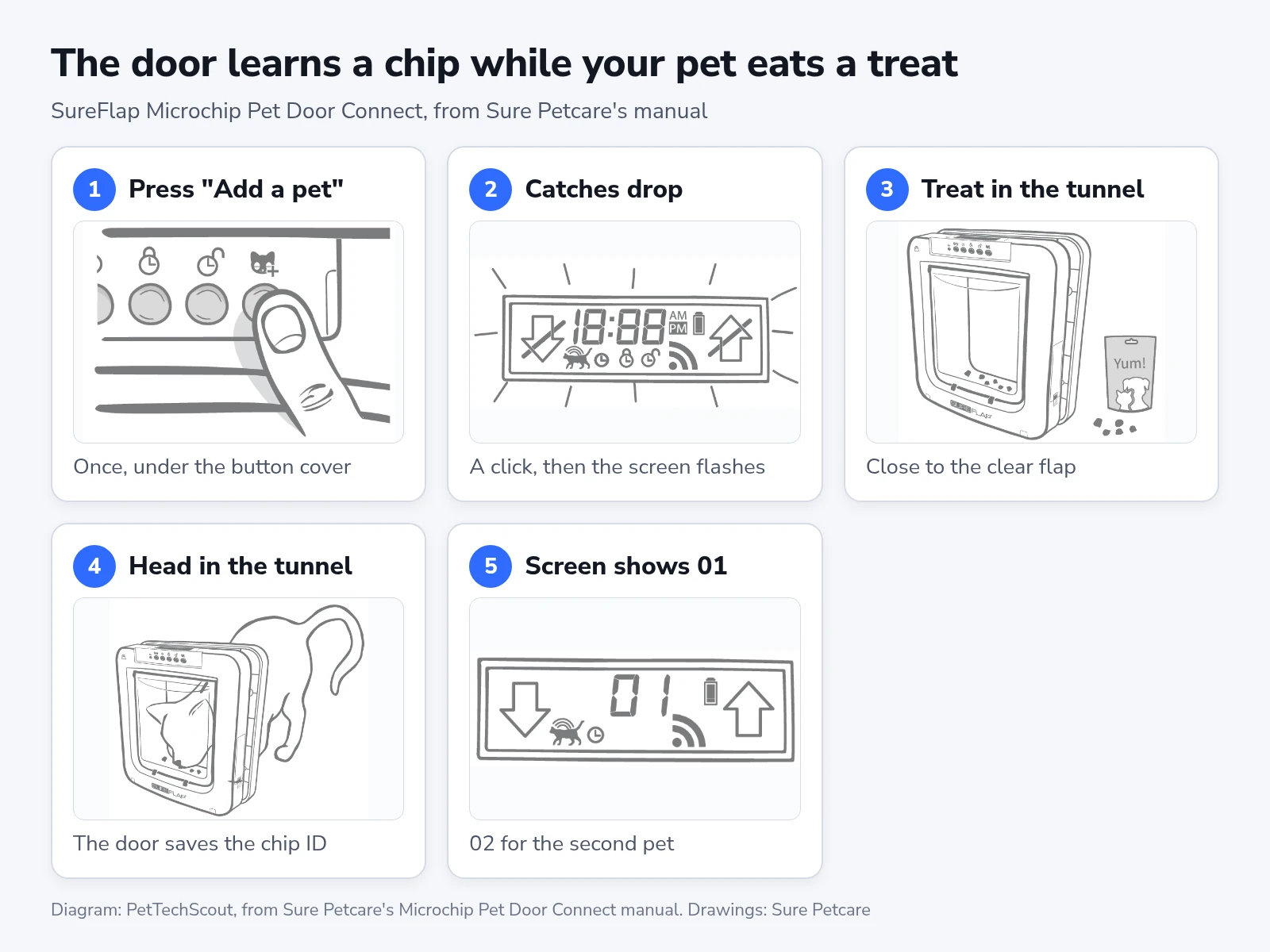
- Remove the button cover at the top of the door’s inside face and press “Add a pet” once. It is the button on the far right, under the cat icon with a plus sign.
- Listen for a click. The catches at the front drop and the screen starts flashing, which means the door is waiting for a pet.
- Put some dry food or a treat inside the tunnel, as close to the clear flap as you can.
- Let your pet put its head into the tunnel to eat. The sensors detect it and the door saves the chip ID.
- Check the screen. It shows 01 for the first pet you add and 02 for the second. The catches move back up once your pet pulls its head out.
Then coax your pet into the tunnel for one more go. This time the door is back in its normal mode, so it should unlock as your pet’s head goes in. That second visit confirms your pet can open the door reliably. Repeat the five steps for each pet, up to the 32 the door can store.
A collar tag goes in the same way, minus the treat. Press “Add a pet”, wait for the click, then hold the tag inside the tunnel so it touches the clear flap. Take off any metal jewelry first, because the manual says it can interfere with the read.
Pair the door with the Hub and name your pets
Do this with the door standing where it will be fitted, so you know the Hub reaches that spot before you cut anything. The manual also says to keep a pen handy. Place the Hub within about 33 feet (10 meters) of the door. Set it about 3 feet off the floor, in line of sight of the door if you can and away from fridges and fish tanks.
- Open the Sure Petcare app and select “Add a product”. The Hub’s ears start flashing green.
- When the app asks, press the Settings button on the door once. It is the small button on the far left, under the gear icon. A green light comes on to show the door is in connecting mode.
- Wait for the symbol with two arcs to appear on the door’s screen. The Hub’s ears return to solid green.
- Find your pets’ ID numbers in the app. Select each one and add a name and a photo to create that pet’s profile.
Give the door a name for its place, like the manual’s “Back Door”, so everyone in the household knows which door an alert means.
Fit it where your pet feels safe
Check that your pet passes through the flap comfortably before you fit anything. The bottom of the hole goes at the height of your pet’s belly, measured from the floor. The side with the SureFlap logo and the screen faces into the house, and both battery compartments have to stay reachable once the door is in.
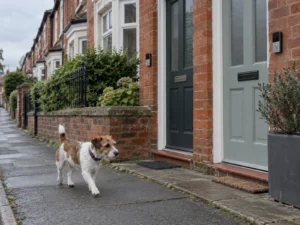
Lead the door to a sheltered spot outside if you can, with potted plants beside the exit, because stepping out into a large open space can stress some pets. Glass, metal doors and walls need SureFlap’s fitting accessories and often a glazier or a builder.
Teach your pet to push through it
A new door can make a cat cautious even if it has used a cat flap before, Sure Petcare’s help center says. Its advice is to start with an open hole and close the flap only once your pet is going through on its own.
- Tape the flap open. Swing the clear flap up toward the inside of the house and tape its bottom edge to the top of the inside frame. A peg works too.
- Put treats or food on the far side of the door.
- Rub a soft cloth over your pet’s face and cheeks, then wipe it around the flap and the tunnel so the door smells familiar.
- Once your pet uses the open hole on its own, take the tape off and let the flap swing shut. Keep the treats on the far side. Now your pet has to push the flap with its head, and it hears the catch click as the door reads its chip.
- Leave the door to your pet. Opening it for your pet can undo the progress.
A taped-open flap lets any animal in, the neighbor’s cat included. Take the tape off at night and whenever nobody is home.
Sure Petcare’s help article on the noise of the catch says almost all pets get used to the door within a few days, and timid ones can take up to two weeks. Its newer training article allows several weeks.
Some pets back off from the click of the catch. On the plain Microchip Pet Door, Sure Petcare fixes that with a custom mode that switches the reader off for a while, or one that waits longer before locking. The Connect’s manual lists no such modes. It says the door’s custom settings come through Sure Petcare’s customer care team, so ask them if the taped stage hasn’t worked after two weeks.
The plain Microchip Pet Door programs differently
The Microchip Pet Door without the Hub keeps strays out the same way, but its manual uses different buttons and settings.
| Microchip Pet Door Connect | Microchip Pet Door | |
|---|---|---|
| Programming button | “Add a pet”, pressed once | Learn button, held about 1 second |
| During programming | Catches drop, screen flashes | Locks open both ways, icons flash |
| Removing a pet | One at a time in the app | A memory wipe clears every pet |
| Training settings | Custom settings through customer care | Custom mode 1 turns the reader off, modes 3 and 4 lock more slowly |
On the plain door you reach the custom modes by holding a recessed button for 10 seconds with a pen. A memory wipe gets rid of a neighbor’s cat that was programmed by mistake, but it erases your own pets too.
When the door won’t open for your pet
Work through these checks in order.
- Confirm the pet is programmed. Put a treat in the tunnel and see whether your pet can push the flap open from the outside. If it can’t, program that pet again with no other animal near the tunnel.
- Check the batteries. Use good alkaline C cells, each facing the right way. A red light flashing next to the screen means they’re low.
- Clean the tunnel. Wipe the sensors in the tunnel roof and the tunnel floor with a damp cloth, and pull pet hair out of the draft excluders around the flap. Give the door about 10 seconds to settle afterward.
- Look for metal. A metal plate or foil inside your door can affect the reader. The manual wants a gap of about an inch (20 to 30 mm) between the tunnel and the metal.
- Look for electrical noise near the door, such as a faulty flickering light. Call Sure Petcare’s customer care if you suspect it.
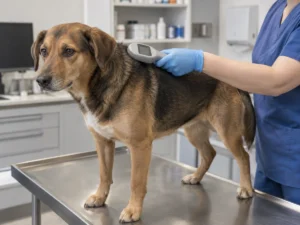
- Have the chip scanned. Sure Petcare’s manual for the plain door warns that a chip’s position and signal strength can stop the door working reliably for a small number of pets. The AVMA names migration, a chip moving away from where it was implanted, as the most commonly reported microchip complication. Your vet’s scan confirms the number and shows where the chip sits now.
If none of that works, contact Sure Petcare’s customer care with these details ready:
- Your pet’s microchip number.
- How the door is fitted (wood, glass, wall or uPVC) and its serial number, which is on the back of the button cover.
- What happens when you press “Add a pet”: whether the catch drops and the light flashes.
- The brand of batteries you use.
Other things that go wrong
If the Hub’s ears flash red, or the door’s screen shows a single arc, the door and the Hub have lost touch. Check that the door’s screen is on, then unplug the Hub’s power for 30 seconds and plug it back in. If it keeps happening, bring the Hub closer with a longer Ethernet cable or a powerline adapter.
A constant clicking sound usually comes from weak or poorly seated batteries. Wipe the battery ends and the door’s contacts with a dry cloth, clean the tunnel sensors, and fit fresh alkaline cells if the clicking goes on.
The app can record a pet as inside when it’s out. A pet that pokes its head out without going through can leave a wrong in or out record, the manual warns.
Pressing the Lock mode button on the door overrides any curfew you set in the app. If a curfew stops working after someone changed the mode by hand, set it again in the app.
If a stray’s chip ends up in the door’s memory, delete it in the app. The Connect lets you remove pets one at a time, so your own pets stay programmed.
Keep it working and check the screen
Every two to three months, wipe the tunnel sensors and floor and clear hair from the draft excluders. Dirt on the sensors can cause wrong locking and drain the batteries, which Sure Petcare rates at up to six months a set. The AVMA advises having your vet scan your pet’s chip at least once a year to make sure it still reads.
When a new pet joins the household after the door is fitted, press “Add a pet” and stay by the door until that animal goes through and its number appears on the screen. That way you know which animal the door saved.
After any change like that, and after fresh batteries, look at the door’s screen. In standard mode both arrows have no line through them, the cat icon shows the microchip reader is enabled, and two arcs show the Hub connection.
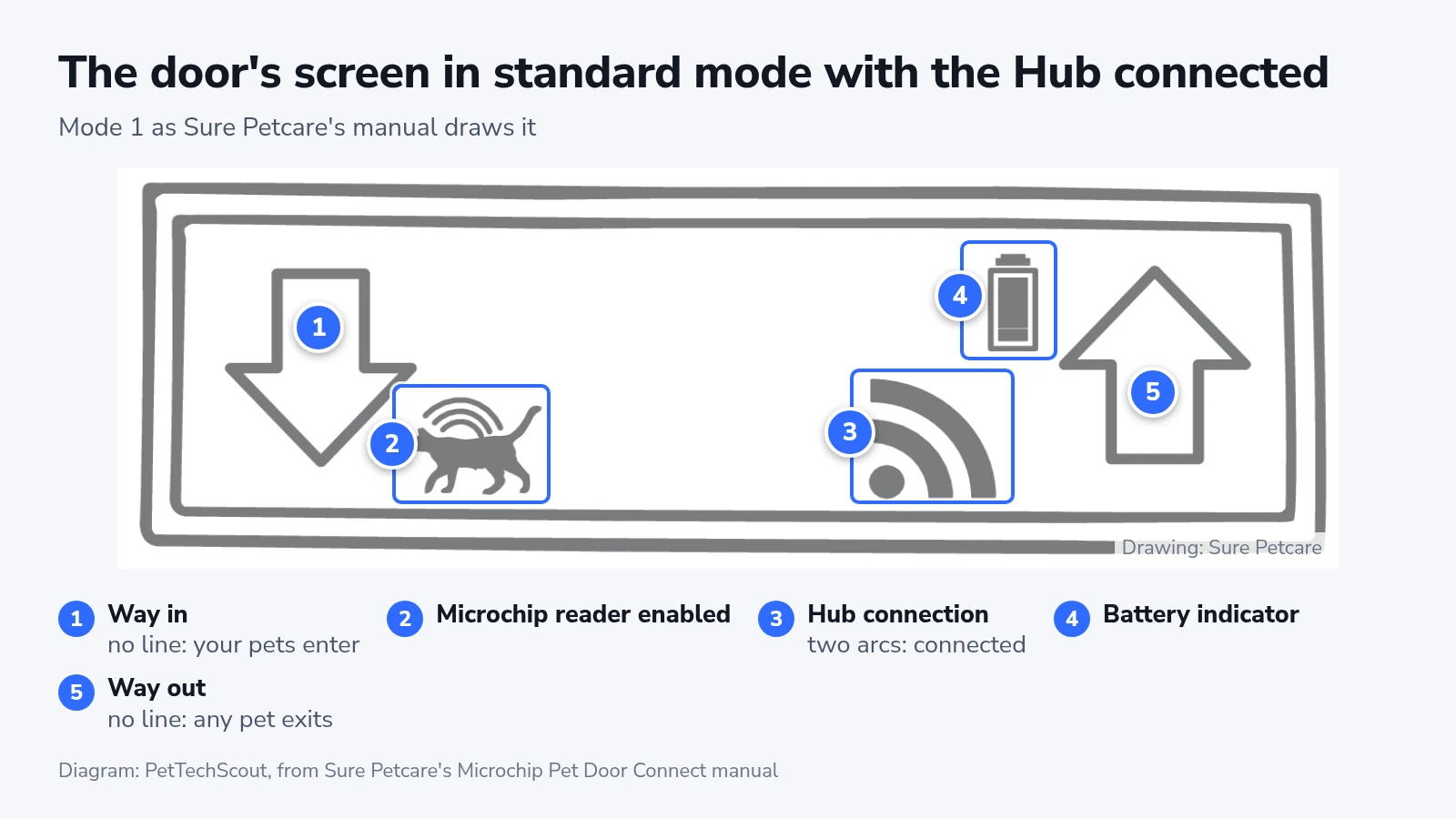
In this mode your programmed pets can come in and any pet inside can go out, because the reader is on the outside of the door only. If the screen matches, watch the app for your pet’s next trip in and out. An entry alert with the right pet’s name is the proof that the door read its chip.