Check the model number and app before resetting a PETLIBRO feeder. The Polar uses 2.4 GHz Wi-Fi. The other models listed below support 2.4 or 5 GHz. A wrong app, password or network band can prevent pairing even when the feeder is working.
Use the model’s own power adapter and follow its pairing instructions near the router. This guide covers the Granary Smart Feeder and Camera Feeder, Granary 2 variants, One RFID, Polar and Dockstream 2 Smart Cordless Fountain. The model details come from PETLIBRO’s manuals and help pages, checked on November 12, 2026.
Have these ready
- The PETLIBRO app, installed and signed in. Some older Granary feeders use the Petlibro Lite app instead, and the next section shows how to tell.
- Bluetooth and location services switched on, with the app allowed to use Bluetooth, Nearby Devices and Local Network.
- Your phone joined to the Wi-Fi network the feeder will use, and that network's password.
- The feeder's own adapter, in an outlet close to the router. PETLIBRO's help pages ask for the feeder within 15 feet of it during setup.
- For the Dockstream 2 Smart Cordless, a fully charged base. Its manual says the battery light turns white when charging is done.
Which app and which band your model needs
PETLIBRO runs two apps, and each device works with only one of them. Everything in this guide uses the PETLIBRO app, with one exception. Look at the nameplate on the bottom of a Granary Smart Feeder or Smart Camera Feeder. If it reads PLAF103 or PLAF203, with no S at the end, the feeder uses Petlibro Lite. PLAF103S and PLAF203S use the PETLIBRO app.
On the camera feeder you can also tell by ear: about 30 seconds after you plug it in, the PETLIBRO-app version says "Buttons locked". And the Lite version beeps three times. Check this before anything else, because a feeder added in the wrong app won't connect however often you reset it.
| Model | Code on the nameplate | Wi-Fi | Reset for pairing |
|---|---|---|---|
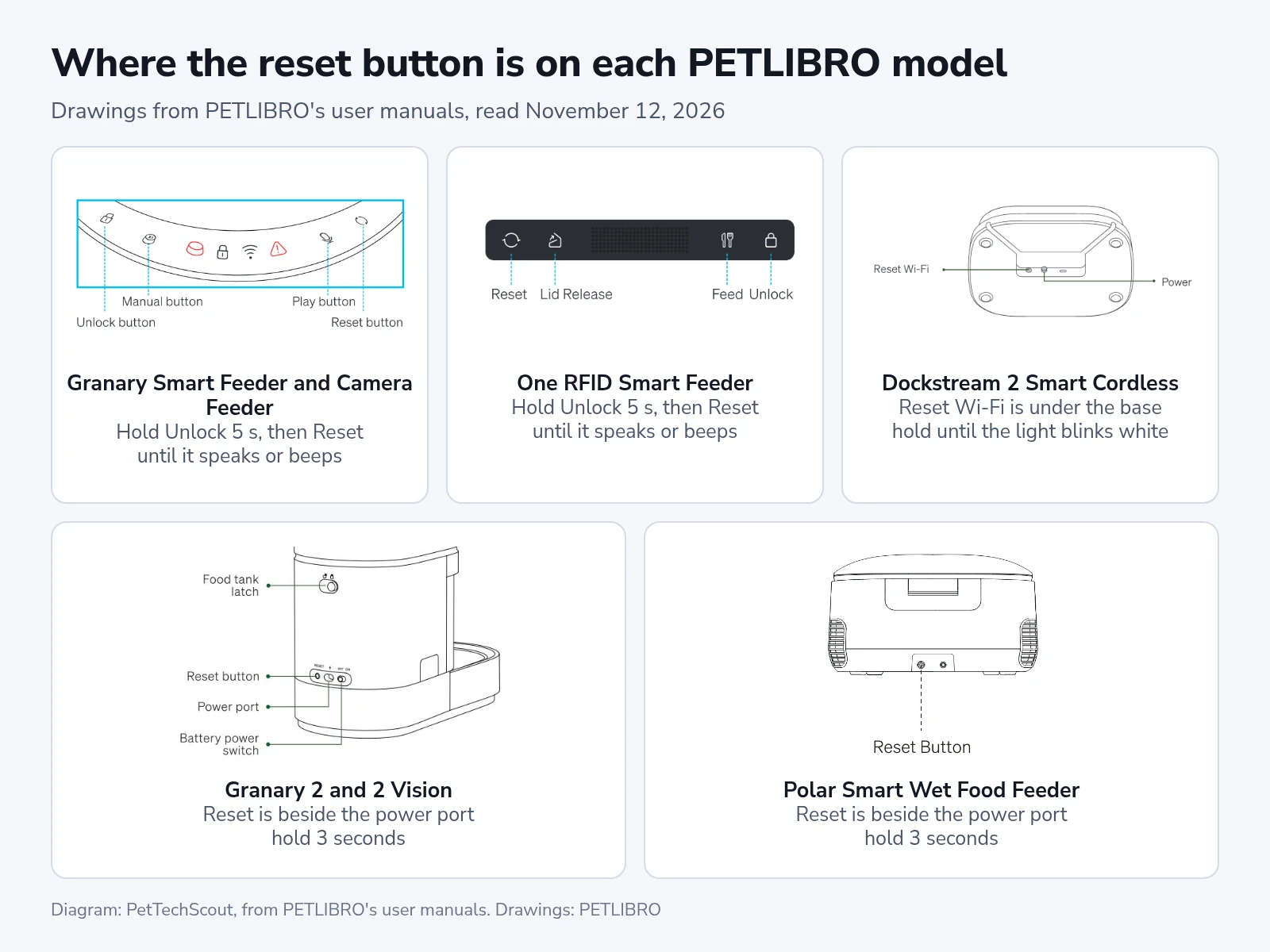
| Granary Smart Feeder | AF103, PLAF103 | 2.4 or 5 GHz | Hold "Unlock" 5 seconds, then hold "Reset". Until it speaks or beeps and the Wi-Fi light flashes |
| Granary Smart Camera Feeder | AF203, PLAF203 | 2.4 or 5 GHz | Same as the Granary Smart Feeder |
| Granary 2, 2 Vision, 2 Vision Duo | AF105, AF205, AF205-D | 2.4 or 5 GHz | Hold "Reset", beside the power port, for 3 seconds |
| One RFID Smart Feeder | AF301, PLAF301 | 2.4 or 5 GHz | Hold "Unlock" 5 seconds, then hold "Reset". Until it speaks or beeps |
| Polar Smart Wet Food Feeder | AF109, PLAF109 | 2.4 GHz only | Hold "Reset", beside the power port, for 3 seconds |
| Dockstream 2 Smart Cordless Fountain | WF116, PLWF116 | 2.4 or 5 GHz | Hold "Reset Wi-Fi", under the base, until the Wi-Fi light blinks white |
For a Polar, join your phone to the 2.4 GHz network before you add it. Any of the others can go on either band.
Put the feeder in pairing mode
- Use mains power for setup, as PETLIBRO instructs. On models with user-removable backup batteries, follow the manual’s instructions for removing them during pairing. Do not open a sealed battery compartment. On battery power alone, the Granary Smart Feeder and Camera Feeder disable Wi-Fi and Reset.
- Plug the adapter into the feeder first, then into the wall. On the Dockstream 2 Smart Cordless, press the power button under the base instead.
- Wait about 30 seconds. A feeder that is ready to pair says "Ready for Wi-Fi connection". Or flashes its Wi-Fi light white about once a second. On the Granary 2 and 2 Vision, the light breathes white.
- If neither happens, reset it with the button the table names. Keep holding until the feeder responds with a voice prompt, beeps or a flashing light.
PETLIBRO's pages give different hold times for some of the same buttons, so the feeder's response is a better guide than counting. The Dockstream 2's manual says 3 seconds for "Reset Wi-Fi", for example, and its help page says 6.
Add it in the PETLIBRO app
- Open the app and tap "+". Or "Add Device". On the home page.
- Hold the phone next to the feeder while the app searches over Bluetooth, then tap your feeder when it appears.
- Pick your Wi-Fi network, type the password and tap "Next".
- Wait for the light to settle. Solid white means connected on the Granary feeders and the Polar. The One RFID's display shows the icon its manual lists for "Successful Wi-Fi connection".
- Finish whatever setup the app asks for. The Granary 2 and 2 Vision want an Empty Bowl Calibration, and the Dockstream 2 wants the tank lifted off the base before you tap "CONFIRM".
The Dockstream 2 Smart Cordless holds a steady white Wi-Fi light for 60 seconds and then turns it off. That dark light is its normal connected state.
To be sure the app can reach a dry-food feeder, send one manual portion from its page in the app. On the Granary 2, PETLIBRO wants that first manual feed anyway, to fill the rotor before the first scheduled meal.
If the app never finds the feeder over Bluetooth, switch to its hotspot method and follow the screens. PETLIBRO's connection pages list both methods and call Bluetooth the easiest one on the Granary 2.
Test the network first if setup fails
A second phone’s hotspot can help narrow down a connection problem. Join your setup phone and feeder to that hotspot using a compatible band, then try pairing. Success suggests a difference in the home network’s settings or signal. It does not prove the feeder has no fault. Failure can still involve the app, permissions, password or hotspot settings. Keep a record of the result for PETLIBRO support.
If you test a Polar with an iPhone 12 or later as the hotspot, turn on "Maximize Compatibility". Under "Settings" > "Personal Hotspot". Apple lists that switch as a fix for devices that can't join. Its security guide says the mode turns off the hotspot's 5 GHz band, which the Polar can't use.
If pairing fails on a router that combines both bands under one name, PETLIBRO suggests trying separate band names. Band steering can influence which band a client joins. It does not mean every combined network will fail. Use your router’s documented controls and select 2.4 GHz for the Polar.
You do not need to disable 5 GHz throughout the house. If you try separate names, reconnect the setup phone to the intended network before pairing again. Keep the router’s security protections enabled. Ask its administrator about device-access restrictions rather than disabling the firewall.
PETLIBRO's help pages name a few other router settings that block its devices:
- a guest network or a device-access restriction
- a MAC address allow list
- public Wi-Fi with a sign-in page, which PETLIBRO doesn't support
- a firewall or VPN set up on the router
- a cap on the number of connected devices
On a shared apartment network, the administrator may have to add the feeder's MAC address before it can join. On a Lite-app Granary feeder, check the password as well. PETLIBRO's comparison chart for those models allows up to 58 characters and no special symbols.
If the app can't find it or it drops offline
When the app doesn't find the feeder, make sure it's on its adapter and has had 30 seconds to start. Check that the app still has its Bluetooth and Nearby Devices permissions. Then reset it again and listen for its response. A Granary 2 left plugged in for more than 20 minutes without Wi-Fi drops into power saving, its manual says. Hold "Reset". For 2 seconds to wake it, then search again. If Bluetooth still fails on a Granary 2 or 2 Vision, set the battery switch to OFF, unplug the adapter, wait a moment and plug it back in.
A rejected password shows up as an error in the PETLIBRO app, so retype it slowly. On a Polar, also check that your phone is on the one band the Polar can use.
If the feeder connects but later drops offline, check its adapter and try a position closer to the router. PETLIBRO suggests a hotspot comparison as another troubleshooting step. A stable connection there points toward a home-network difference but is not a complete diagnosis.
On the Granary Smart Feeder, a Wi-Fi light flashing three times a second means it's updating its firmware. A Polar flashing red and white has a network failure, and a Dockstream 2 blinking red has a network error. On the Granary 2 and 2 Vision, a steady red light can mean a failed setup or an offline feeder. The same red light also covers low food and a jam.
If none of this works, PETLIBRO asks for a report from inside the app: open "Me" > "Feedback". And allow the device logs to upload.
Moving to a new router or Wi-Fi password
To move a feeder to a new network, open its settings in the app and tap "Wi-Fi Settings". Then tap "Replace Wi-Fi". Or "Switch Wi-Fi" (the label differs by model), choose the new network and enter its password. PETLIBRO says no reset is needed this way. PETLIBRO doesn't say whether the switch works once the old network is gone. We'd do it the evening before the new router goes in, while both networks still work.
Before a factory reset, capture the meal schedule and arrange a way to feed your pet while setup is incomplete. A reset may clear settings. If the old network is gone, use the exact model’s reset and pairing instructions, then check the saved schedule and confirm a manual portion dispenses. An offline feeder may retain an existing schedule, but do not assume that schedule survives a reset.